Managing providers
Save provider details and tax IDs so Davner can use them on your requests.
Keep the clinicians and facilities your practice works with in Providers. Save their details once, and Davner can use them when preparing your prior authorization requests.
Open Providers to search by name, NPI, tax ID, phone, or address. Use the Clinicians and Facilities tabs to browse separately, or the sort menu to order providers by name or recent updates.
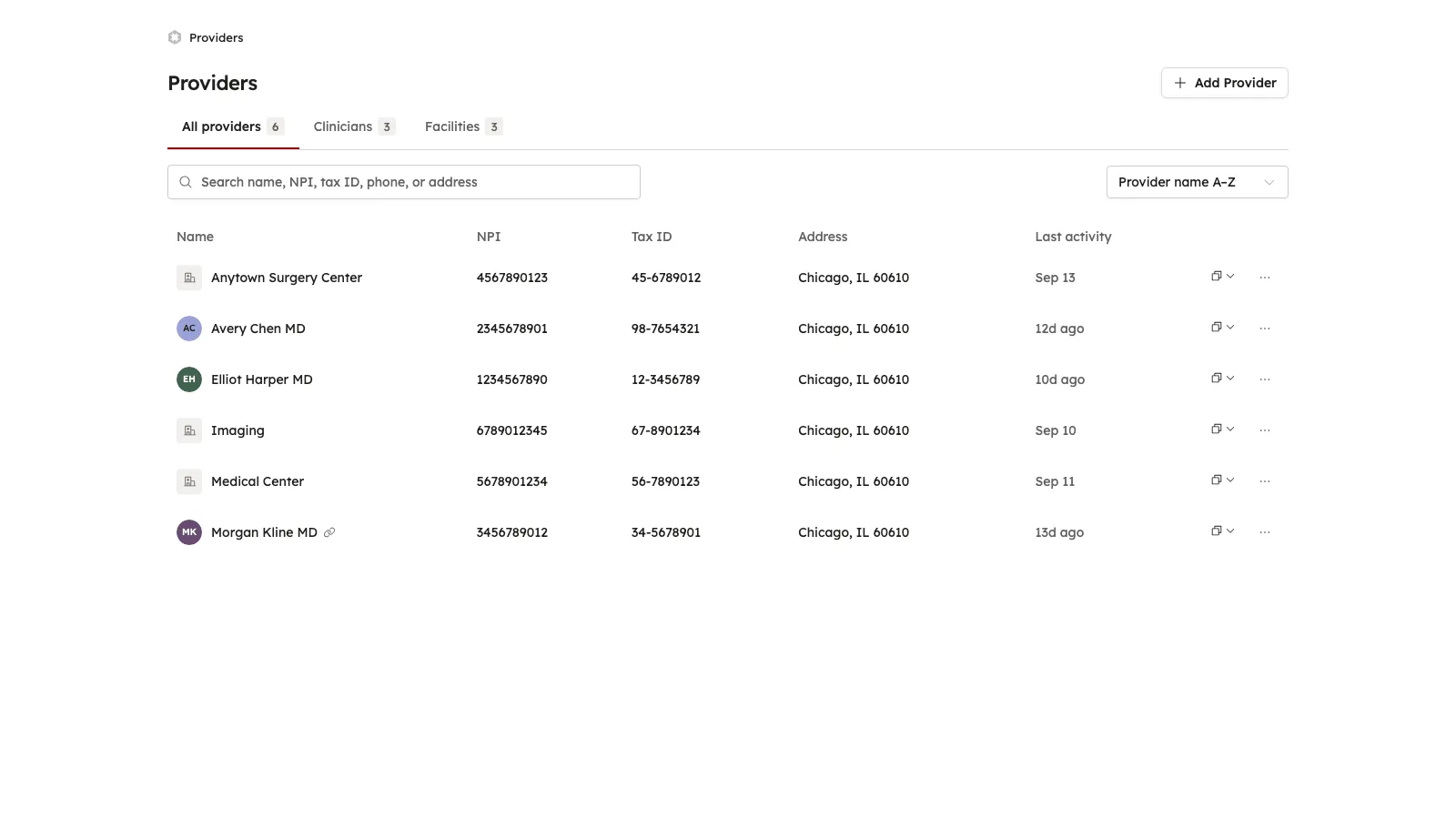
Add a provider
Find them in the NPI registry
Select Add Provider and search by name, organization, or NPI. Choose the matching result to fill in the provider’s details.
You can also enter the details manually.
Check and save their details
Check the NPI, address, and contact information, and add the provider’s tax ID. Select Add provider to save.
Save tax IDs
Tax IDs are private information and aren’t available through the public NPI registry. Add them in Providers so Davner has the information it needs for your requests.
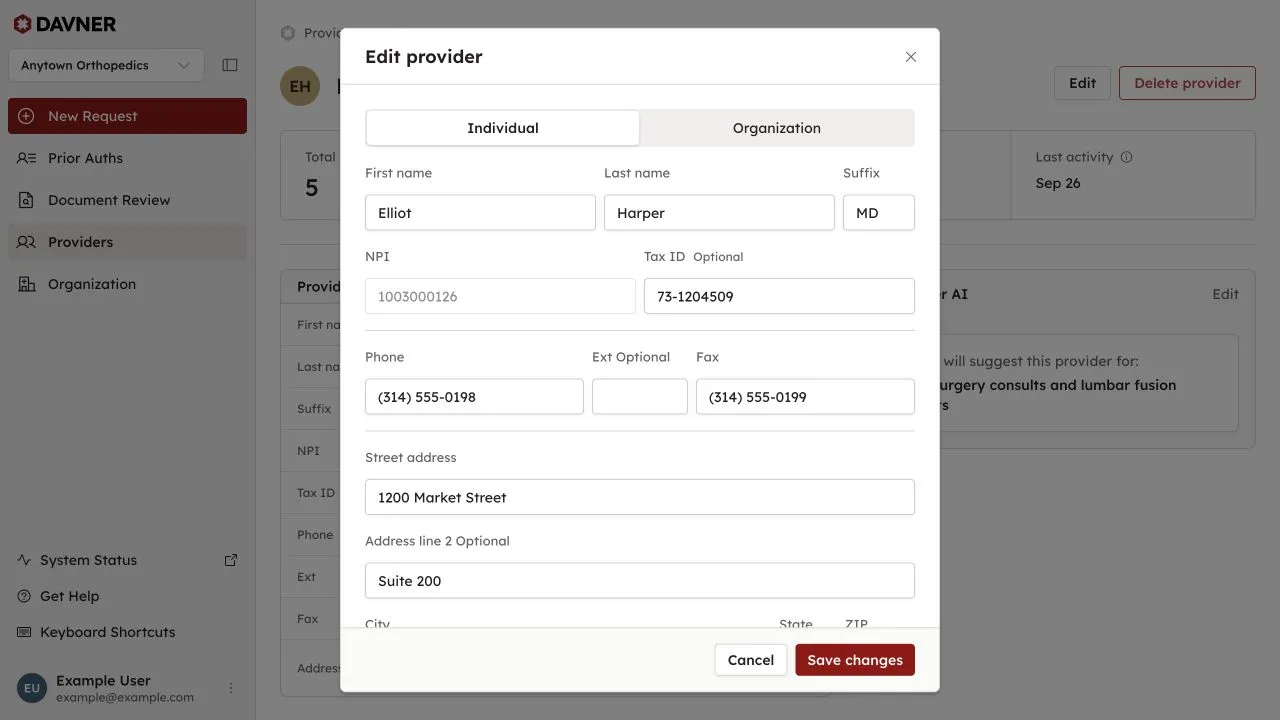
To add or update a tax ID, open the provider, select Edit, enter the Tax ID, and select Save changes.
Once a tax ID is saved, Davner automatically uses it when that provider appears as the ordering provider, rendering provider, or facility on a request.
Use a different tax ID for one request
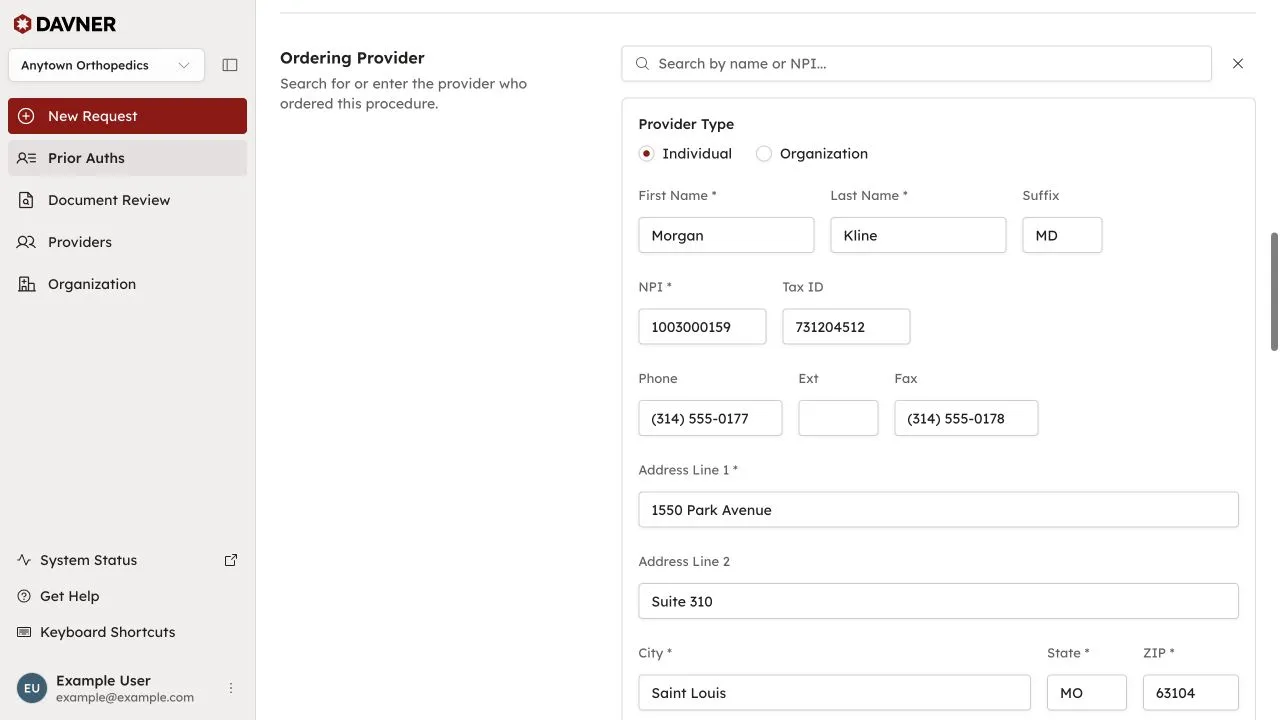
If a request needs a different tax ID, change the Tax ID in the ordering provider, rendering provider, or facility section while confirming the request. That change applies to the request; it doesn’t change the tax ID saved in Providers.
Help Davner suggest the right provider
Your practice may regularly use a particular clinician or facility for certain procedures. AI suggestions let you tell Davner about those preferences so it can suggest a provider when the uploaded records don’t specify one.
For example, you might use one surgeon for spine consultations and a particular imaging facility for MRI requests.
Open the provider
In Providers, select the clinician or facility you want Davner to suggest.
Describe when to suggest them
Select Set up in the AI suggestions section. If guidance is already saved, select Edit in the Davner AI panel.
In When should Davner suggest this provider?, describe the relevant procedures, specialties, or request types. For example:
Spine surgery consults and lumbar fusion requests.
Select Save suggestions.
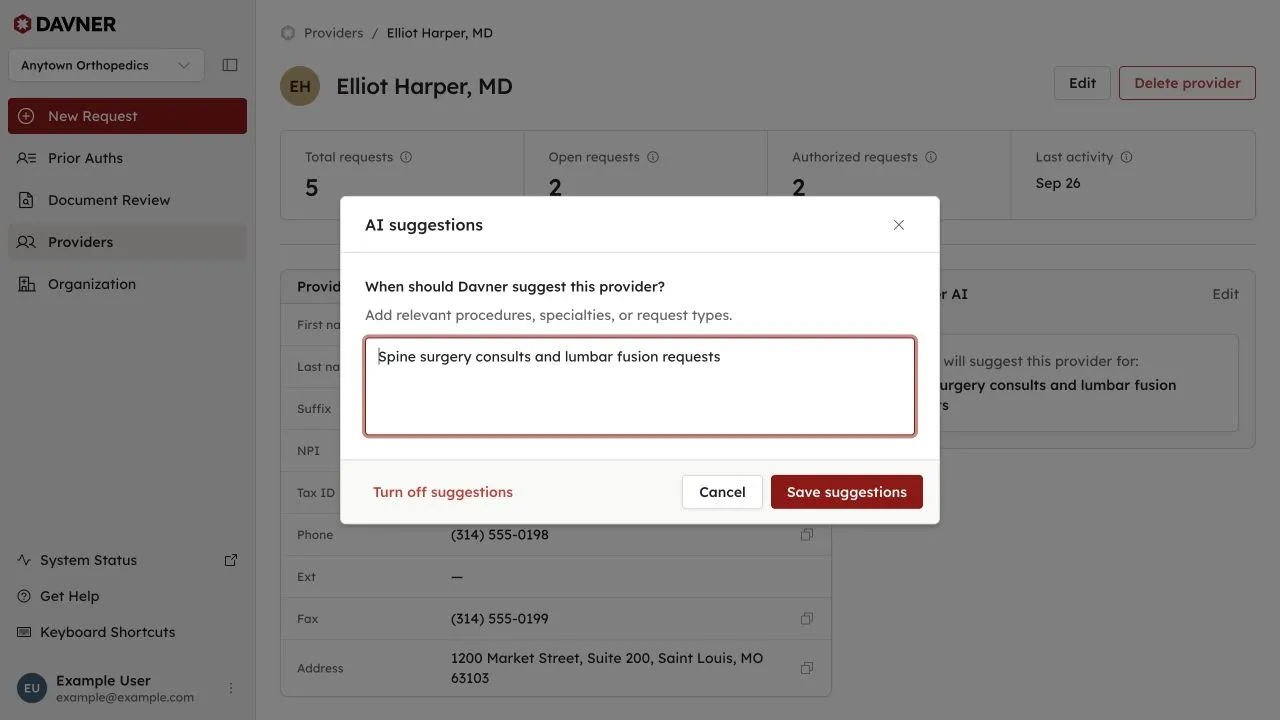
Davner uses your guidance as it fills out the prior authorization form. You’ll see the suggested provider when you review the request and can change it before selecting Attest & Submit.
To change your guidance, open the provider and select Edit in the Davner AI panel. Update the guidance and select Save suggestions, or choose Turn off suggestions to stop suggesting that provider. The provider stays in your directory.
Share requests with a provider’s office
If a provider’s office also uses Davner, you can link the provider to their organization. When that provider is the ordering provider, rendering provider, or facility on a request, the request is shared with their office when you confirm it. Their team can view it and add comments. Only that organization’s members can see it.
- Ask the provider’s office for their Davner organization slug. If they aren’t sure what it is, contact us.
- Open the provider, select Edit, and expand Additional settings.
- Enter the slug in Linked Davner organization. Davner shows the organization’s name so you can check it’s the right practice.
- Select Save changes.
The link applies to requests you confirm after saving it. To stop sharing a particular request, see Requests shared with other practices.
Update or remove a provider
Open a provider and select Edit to update their tax ID, name, address, or contact details.
The NPI can’t be changed after a provider is created. If you entered the wrong NPI, it’s safe to delete that provider and add them again with the correct NPI. Deleting a provider doesn’t delete any associated prior authorization requests.
To remove an entry, open the provider, select Delete provider, and confirm Delete.