Tracking progress
See what Davner is doing, read call transcripts, and know when your team needs to act.
Davner handles the work and keeps you up to date. You can open a request at any time to see its status, read updates and call transcripts, or ask a question.
We send status updates by email to the person who created the request, with a link back to it in Davner. If we need something from your practice, we’ll explain what’s needed. You don’t need to keep checking the page while we work.
See the work on a request
The status at the top tells you where the request stands. Activity shows updates, comments, document uploads, calls, and both sent and received faxes.
Select a call with a transcript to read the conversation with the payer. You can also post a comment in Activity to ask a question or let us know something has changed.
For faxes, you can see what we sent to the payer and what came back. Select the document attached to a fax to read it.
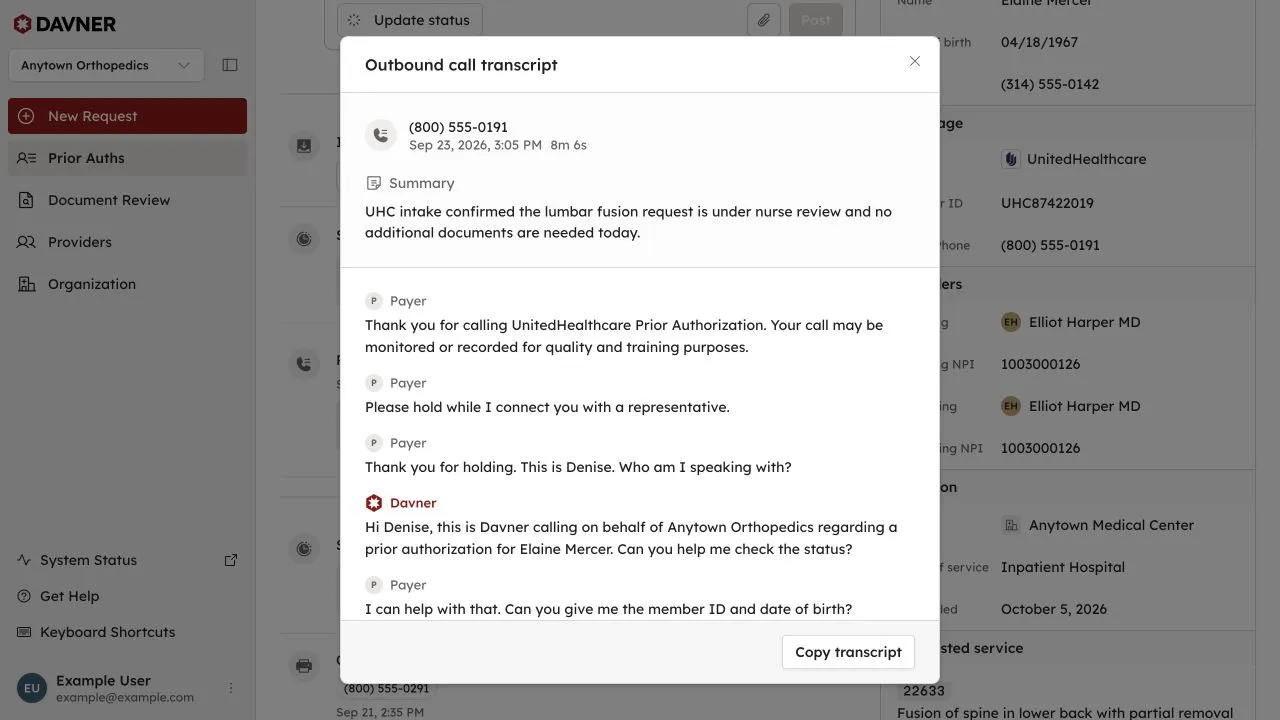
View the patient, insurance, providers, facility, procedures, and scheduling information. If something has changed, see Correct details after submission.
Find your uploaded records and payer correspondence together. Open a file to preview or download it.
Find a request
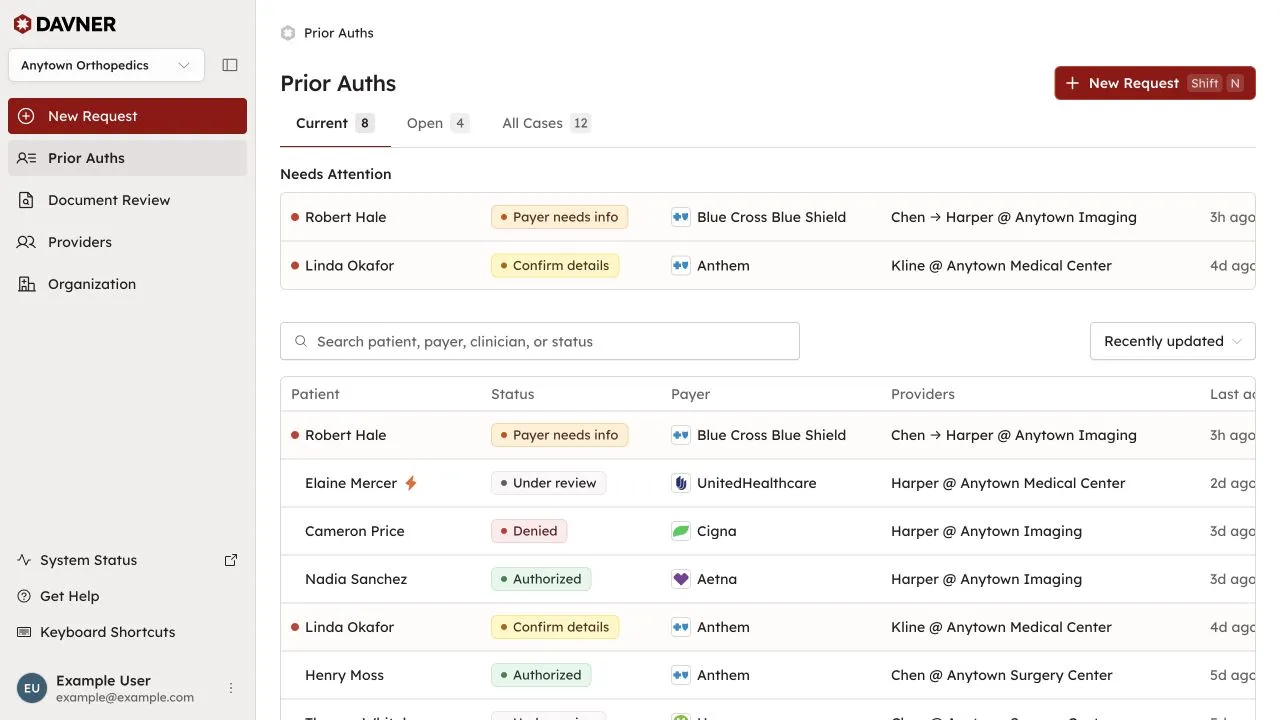
Open Prior Auths and choose a view:
- Current shows open requests and completed requests with activity in the last seven days.
- Open shows requests that aren’t authorized, denied, or withdrawn.
- All Cases includes all requests, including older completed cases.
Search by patient name, payer, or status. Choose All Cases when you’re looking for an older request.
Requests shared with other practices
A request can be shared with another practice that uses Davner, such as the office of a surgeon or imaging facility you refer to. Their team can view the request and add comments, so everyone follows the same case without forwarding updates.
Requests are shared automatically when you confirm them if the ordering provider, rendering provider, or facility is linked to that practice’s Davner organization. See Share requests with a provider’s office to set up a link.
- Requests you share list the other organizations under Shared with. To remove an organization’s access, open the menu beside it and select Stop sharing.
- Requests shared with you appear in Prior Auths alongside your own and show Shared with you with the name of the practice that created them. You can view the details and add comments. The practice that created the request manages its records and details.
What each status means
The status tells you where the request stands and who’s handling the next step.
| Status | What’s happening |
|---|---|
| With Davner | We’re handling the submission and follow-up. There’s nothing you need to do. |
| Under review | The payer is reviewing the request. We’ll follow up with them. |
| Payer needs info | The payer asked for more information. We’re handling the response and will let you know if we need anything from you. |
| Davner needs info | We need information from your practice. Read our comment and respond with a comment or files. |
| Authorized | The payer approved the request. You can review the approval details. |
| Denied | The payer denied the request. Read our explanation and next steps. |
| Withdrawn | The request has been withdrawn. Its documents and activity remain available. |
Statuses before you submit
| Status | What’s happening |
|---|---|
| Processing… | Davner is reading your files and filling out the form. |
| Confirm details | The form is ready. Check the information and select Attest & Submit. |
| Processing failed | Davner couldn’t finish processing the files. Open the request to complete the form manually. |
Common questions
Who receives email updates?
The person who created the request receives status updates by email. Anyone else in your organization can find the request in Prior Auths and follow its Activity.
What if the person who created a request is out?
A teammate can open the request in Prior Auths, respond to requests for information, and leave comments. If someone has left your practice, remove them from your organization; their requests stay with your organization.